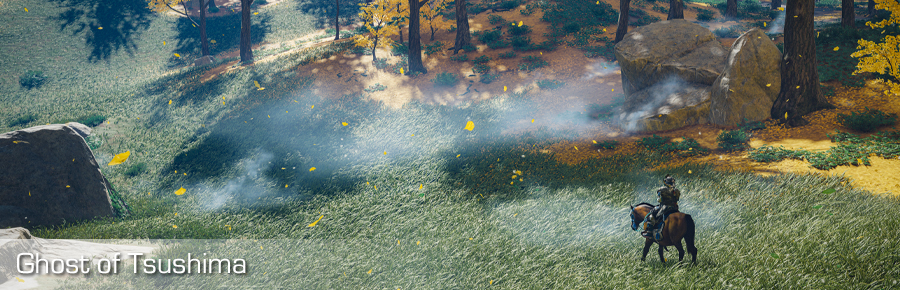
Versions and compatibility
| Latest version | v1.0.0 |
| Released on | 20-may-2024 |
| Compatible with | Ghost of Tsushima, Steam. |
| Hotsampling via | Running the game in Windowed mode |
| Supports IGCS Connector | Yes, 2.0+ |
| Supports IGCSDOF | Yes |
| Download latest version | Post on patreon |
Features at a glance
The photomode mod for Ghost of Tsushima offers the following features:
-
Full, unlimited camera control (gameplay, cutscenes, photomode)
- Controller or mouse/keyboard control over the camera
- Field of view (FoV) control (Also during gameplay)
- Tilt
- Camera shake controls in both manual movement (for hand-shot videos) and camera paths.
- Camera paths support ('dolly cam') for defining moving camera trajectories for movies.
- Game pause / unpause.
- Frameskip
- HUD toggle
- No pause menu on alt-tab
- Custom aspect ratios
- Game speed control (slow-motion, speed up)
- Higher LODs
- Black bars removal in cutscenes
- No pause on alt tab
- Configurable input interpolation for smooth camera movement/rotation/fov zoom in/out
- Configurable keybindings
- Configurable gamepad buttonbindings
How to use
Please see for details how to get started and configure this photomode mod, General features and configuration. This guide will provide additional information for the controls / features specific for this photomode mod.
If you don't see the GhostOfTsushima.exe process in the Process to inject to textbox, please
click the Select button to select it manually. This might be the case if you're running the game as Administrator, and the IGCSClient.exe does not,
it can't see the GhostOfTsushima.exe process. In that case, restart the IGCSClient.exe as Administrator.
HUD Toggle
The tools don't have a built-in HUD toggle, instead you have to install the HUD toggle made through my
ShaderToggler Reshade Addon for Reshade with Addon support.
It toggles: Depth of Field, HUD elements and the Menu. Key to use is Del.
To install the HUD toggle, install Reshade 6.1.1 or higher with Addon support, from https://reshade.me. On the reshade page at the bottom, click the "Download ReShade 6.1.1 with full add-on support" button and install that for the game, using the reshade installer exe you just downloaded.
After that copy the two files in the "HUD Toggle" folder into the bin folder inside your Ghost of Tsushima installation folder. To see if you've installed it correctly, when you open the Reshade panel in-game, (default the HOME key) you should see an Add-on tab with the Shader toggler present.
Guide for setting up Reshade: https://framedsc.com/ReshadeGuides/setupreshade.htm
Guide for Shader Toggler: https://framedsc.com/ReshadeGuides/Addons/shader_toggler_repository.htm
Game pause and cutscenes
The game pause in the tools pause cutscenes for the most part, however when unpausing they'll skip to the next keyframe in the sequence. This might cause
a small skip in the cutscene. To prevent that, pause the game using ESC and go to the graphics or display menu and press Del to hide the menu. You can now enable
the camera and move it around.
Image Adjustments
The Image Adjustments tab is the tab where you can adjust additional aspects of the game. It offers the following features:
- Game speed
- This controls how fast the runs internally; a value of 1.0 is 'normal game speed' and a value of 0.0 is total pause. Use this to create slow-motion effects which help you pause the game at the right moment.
- Higher LODs
- This setting will increase the asset quality further away from the camera.
Information recorded with camera path nodes
When you create a Camera path, each node records the camera location, orientation and field of view.
Saving/restoring camera state
After you've enabled the camera (default with Insert), you can store the current camera state in three slots. The camera state is the current location,
the orientation/rotation of the camera and the FoV, as well as other information recorded in camera path nodes, as the system uses camera path nodes under the hood.
By default you save the camera state by using
Ctrl + F1 for saving the current camera state in slot 1, Ctrl + F2 for saving the current camera state in slot 2 and
Ctrl + F3 for saving the current camera state in slot 3. To restore the camera state to a saved state, press F1 to restore the camera to the state saved
in slot 1, press F2 to restore the camera to the state saved in slot 2 and, press F3 to restore the camera to the state saved
in slot 3. These keys are configurable in the keybindings tab.
When you disable the camera again, the saved states are lost. If you want to preserve game states after you disabled the camera (e.g. you want to move the character a bit, and then enable the camera again), use a camera path and add the camera states you want to save as nodes. Camera paths are preserved after you disable the camera.
Controls
The default photomode mod controls are listed below. It depends on the Camera control device setting on the Configuration tab whether the device (e.g. mouse or gamepad) can control the camera.
Mouse
When moving the mouse:
- No mouse buttons pressed: rotate the camera
- Left button pressed: move camera up / down / left / right
- Right button pressed: move camera forward / backward / left / right
- Both left and right button pressed: tilt camera left / right
- Mousewheel: increase / decrease Field of View (FoV)
Keyboard
Normal camera usage
| Key | Feature |
|---|---|
Insert |
Enable / Disable the camera |
Numpad . |
Block / Unblock input to game |
Numpad - |
Decrease FoV |
Numpad + |
Increase FoV |
Numpad * |
Reset FoV |
Home |
Lock / Unlock camera movement |
Numpad 4 |
Move camera left (+ Ctrl: slower, + Alt: faster) |
Numpad 6 |
Move camera right (+ Ctrl: slower, + Alt: faster) |
Numpad 8 |
Move camera forward (+ Ctrl: slower, + Alt: faster) |
Numpad 5 |
Move camera backward (+ Ctrl: slower, + Alt: faster) |
Numpad 7 |
Move camera up (+ Ctrl: slower, + Alt: faster) |
Numpad 9 |
Move camera down (+ Ctrl: slower, + Alt: faster) |
Numpad 4 |
Move camera left (+ Ctrl: slower, + Alt: faster) |
Arrow key Up |
Rotate camera up (+ Ctrl: slower, + Alt: faster) |
Arrow key Down |
Rotate camera down (+ Ctrl: slower, + Alt: faster) |
Arrow key Left |
Rotate camera left (+ Ctrl: slower, + Alt: faster) |
Arrow key Right |
Rotate camera right (+ Ctrl: slower, + Alt: faster) |
Numpad 0 |
Pause / Unpause the game |
Page down |
Skip a few frames when paused |
Numpad 1 |
Tilt camera left (+ Ctrl: slower, + Alt: tilt 90 degrees left) |
Numpad 3 |
Tilt camera right (+ Ctrl: slower, + Alt: tilt 90 degrees right) |
Numpad 2 |
Reset tilt |
F1 |
Restore the camera state to the state saved in slot 1 (+ Ctrl: store current state in slot 1) |
F2 |
Restore the camera state to the state saved in slot 2 (+ Ctrl: store current state in slot 2) |
F3 |
Restore the camera state to the state saved in slot 3 (+ Ctrl: store current state in slot 3) |
Miscellaneous usage
| Key | Feature |
|---|---|
\ |
Toggle gamespeed override |
[ |
Decrease gamespeed. |
] |
Increase gamespeed. |
Camera path usage
| Key | Feature |
|---|---|
F7 |
Start / pause playback |
F8 |
Stop playback |
F4 |
Add path |
F10 |
Add node to active path |
Ctrl+F10 |
Replace the active node on the active path |
Alt+F10 |
Insert a new node in front of the active node on the active path |
Ctrl+Home |
Go to start of active path |
Ctrl+End |
Go to end of active path |
Ctrl+Page Up |
Go to previous node on active path |
Ctrl+Page Down |
Go to next node on active path |
Numpad 1 |
Select the first path during playback (if any) |
Numpad 2 |
Select the second path during playback (if any) |
Numpad 3 |
Select the third path during playback (if any) |
Numpad 4 |
Select the forth path during playback (if any) |
Numpad 5 |
Select the firth path during playback (if any) |
Numpad 6 |
Select the sixth path during playback (if any) |
Numpad 7 |
Select the seventh path during playback (if any) |
Numpad 8 |
Select the eighth path during playback (if any) |
Numpad 9 |
Select the ninth path during playback (if any) |
Gamepad
Normal camera usage
| Control | Feature |
|---|---|
| Left stick | Move camera forward / backward / left / right |
| Right stick | Rotate camera |
| Left trigger | Move camera up |
| Right trigger | Move camera down |
| Y button + left / right stick | Faster movement / rotation |
| X button + left / right stick | Slower movement / rotation |
| D-pad up / down | Decrease (zoom in) / Increase (zoom out) FoV |
| B button | Reset FoV |
Camera path usage
| Control | Feature |
|---|---|
| Start | Start / pause playback |
| Back | Stop playback |
| Left bumber | Go to previous node on active path |
| Right bumper | Go to next node on active path |
| A | Add node to active path |
Miscellaneous usage
| Key | Feature |
|---|---|
| X button + pressing left stick | Toggle gamespeed override |
| X button + left bumper | Decrease gamespeed. |
| X button + right bumper | Increase gamespeed. |