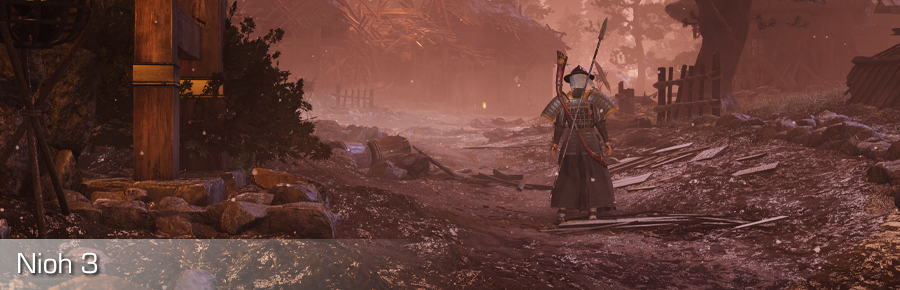
Versions and compatibility
| Latest version | v1.0.0 |
| Released on | 05-feb-2026 |
| Compatible with | Nioh 3 steam version (Also works in the Demo) |
| Hotsampling via | Running the game in windowed mode |
| Supports IGCS Connector | Yes (2.0+) |
| Supports IGCSDOF | Yes |
| Download latest version | Post on patreon |
Features at a glance
The photomode mod for Nioh 3 offers the following features:
-
Camera control: (Also in cut scenes and photomode)
- FoV control
- Free unlimited camera movement and rotation
- Camera shake controls in both manual movement (for hand-shot videos) and camera paths.
- Timestop / game pause control
- Camera paths support ('dolly cam') for defining moving camera trajectories for movies.
- Frameskip
- HUD toggle
- Hotsampling (resize the game window to any resolution)
- Pillarbox/letterbox removal in custom aspect ratios
- Weather control (rain/temperature/clouds)
- Fog / haze control
- Sun / moon control
- Eye control in the photomode
- Configurable input interpolation for smooth camera movement/rotation/fov zoom in/out
- Configurable keybindings
- Configurable gamepad buttonbindings
How to use
Please see for details how to get started and configure this photomode mod, General features and configuration. This guide will provide additional information for the controls / features specific for this photomode mod.
If you don't see the nioh3.exe process in the Process to inject to textbox, please click the Select button to select it manually. This might be the case if you're running the game as Administrator,
and the IGCSClient.exe does not, it can't see the nioh3.exe process. In that case, restart the IGCSClient.exe as Administrator.
It's not needed to run the game as administrator.
It might be you need to click 'Set' twice to get the resolution set to the right value. If you want a window border around your window, this will make the game window become slightly smaller and blurred. This is sadly a side effect how the game's engine works so having a border around your window isn't recommended.
Misc Adjustments
The Misc Adjustments tab is the tab where you can adjust some aspects that might influence the image / world look.
Sky / Weather options
Enable the toggle to be able to change any of the sliders which affect the sky and atmosphere.
- Cloud factor
- A factor that controls how cloudy it is outside
- Temperature
- This controls the temperature and nature of the precipitation (rain/snow). A temperature lower than -10 will give snow/frost on the environment. A temperature lower than 0 will give snow instead of rain if Precipitation is set to a value higher than 0.
- Humidity
- Controls the amount of moist in the atmosphere
- Precipitation
- Controls the amount of rain / snow (if the temperature is low enough) falling down. It won't take effect until you unpause the game.
- Fog factor
- Controls the amount of depth fog (if applied in the level)
- Haze factor
- Controls the amount of haze in the atmosphere
- Haze Height
- Controls the height of the haze (close to the ground or high up in the sky)
- Sky clear factor
- Controls the amount of clear sky outside the clouds
- Skylight trajectory offset
- This mimics as a time of day. It doesn't really change time in-game but moves the sky light (sun or moon) forward/backward over its trajectory across the sky. You can also change this value with the keyboard (see Keybindings) which might be easier than flipping back/forth to the client to get the right sun position. Of course the Sky / Weather options toggle has to be enabled to control the value by keyboard.
Miscellaneous options
- Photomode eye control
- Controls the eye movement in the game's photomode for left/right/up/down movement over a way larger range than the in-game gui offers.
Information recorded with camera path nodes
When you create a Camera path, each node records the camera location, orientation and field of view. Additionally to that for this game the camera node will also contain the current fog values and time of day. So if you want to have different time of day values per node, you can, just set the value you want in the client on the Environment Adjustments tab and create a camera path node.
Saving/restoring camera state
After you've enabled the camera (default with Insert), you can store the current camera state in three slots. The camera state is the current location,
the orientation/rotation of the camera and the FoV, as well as other information recorded in camera path nodes, as the system uses camera path nodes under the hood.
By default you save the camera state by using
Ctrl + F1 for saving the current camera state in slot 1, Ctrl + F2 for saving the current camera state in slot 2 and
Ctrl + F3 for saving the current camera state in slot 3. To restore the camera state to a saved state, press F1 to restore the camera to the state saved
in slot 1, press F2 to restore the camera to the state saved in slot 2 and, press F3 to restore the camera to the state saved
in slot 3. These keys are configurable in the keybindings tab.
When you disable the camera again, the saved states are lost. If you want to preserve game states after you disabled the camera (e.g. you want to move the character a bit, and then enable the camera again), use a camera path and add the camera states you want to save as nodes. Camera paths are preserved after you disable the camera.
Controls
The default controls are listed below. It depends on the Camera control device setting on the Configuration tab whether the device (e.g. mouse or gamepad) can control the camera.
Mouse
When moving the mouse:
- No mouse buttons pressed: rotate the camera
- Left button pressed: move camera up / down / left / right
- Right button pressed: move camera forward / backward / left / right
- Both left and right button pressed: tilt camera left / right
- Mousewheel: increase / decrease Field of View (FoV)
Keyboard
Normal camera usage
| Key | Feature |
|---|---|
Insert |
Enable / Disable the camera |
Numpad . |
Block / Unblock input to game |
Numpad - |
Decrease FoV |
Numpad + |
Increase FoV |
Numpad * |
Reset FoV |
Home |
Lock / Unlock camera movement |
Numpad 4 |
Move camera left (+ Ctrl: slower, + Alt: faster) |
Numpad 6 |
Move camera right (+ Ctrl: slower, + Alt: faster) |
Numpad 8 |
Move camera forward (+ Ctrl: slower, + Alt: faster) |
Numpad 5 |
Move camera backward (+ Ctrl: slower, + Alt: faster) |
Numpad 7 |
Move camera up (+ Ctrl: slower, + Alt: faster) |
Numpad 9 |
Move camera down (+ Ctrl: slower, + Alt: faster) |
Numpad 4 |
Move camera left (+ Ctrl: slower, + Alt: faster) |
Arrow key Up |
Rotate camera up (+ Ctrl: slower, + Alt: faster) |
Arrow key Down |
Rotate camera down (+ Ctrl: slower, + Alt: faster) |
Arrow key Left |
Rotate camera left (+ Ctrl: slower, + Alt: faster) |
Arrow key Right |
Rotate camera right (+ Ctrl: slower, + Alt: faster) |
Numpad 0 |
Pause / Unpause the game |
Page down |
Skip a few frames when paused |
Numpad 1 |
Tilt camera left (+ Ctrl: slower, + Alt: tilt 90 degrees left) |
Numpad 3 |
Tilt camera right (+ Ctrl: slower, + Alt: tilt 90 degrees right) |
Numpad 2 |
Reset tilt |
F1 |
Restore the camera state to the state saved in slot 1 (+ Ctrl: store current state in slot 1) |
F2 |
Restore the camera state to the state saved in slot 2 (+ Ctrl: store current state in slot 2) |
F3 |
Restore the camera state to the state saved in slot 3 (+ Ctrl: store current state in slot 3) |
, |
Set Time of Day earlier (+ Alt: slower) |
. |
Set time of Day later (+ Alt: slower) |
Camera path usage
| Key | Feature |
|---|---|
F7 |
Start / pause playback |
F8 |
Stop playback |
F4 |
Add path |
F10 |
Add node to active path |
Ctrl+F10 |
Replace the active node on the active path |
Alt+F10 |
Insert a new node in front of the active node on the active path |
Shift-F10 |
Insert a new node after the active node on the active path |
Ctrl+Home |
Go to start of active path |
Ctrl+End |
Go to end of active path |
Ctrl+Page Up |
Go to previous node on active path |
Ctrl+Page Down |
Go to next node on active path |
Numpad 1 |
Select the first path during playback (if any) |
Numpad 2 |
Select the second path during playback (if any) |
Numpad 3 |
Select the third path during playback (if any) |
Numpad 4 |
Select the forth path during playback (if any) |
Numpad 5 |
Select the firth path during playback (if any) |
Numpad 6 |
Select the sixth path during playback (if any) |
Numpad 7 |
Select the seventh path during playback (if any) |
Numpad 8 |
Select the eighth path during playback (if any) |
Numpad 9 |
Select the ninth path during playback (if any) |
Gamepad
Normal camera usage
| Control | Feature |
|---|---|
| Left stick | Move camera forward / backward / left / right |
| Right stick | Rotate camera |
| Left trigger | Move camera up |
| Right trigger | Move camera down |
| Y button + left / right stick | Faster movement / rotation |
| X button + left / right stick | Slower movement / rotation |
| D-pad up / down | Decrease (zoom in) / Increase (zoom out) FoV |
| B button | Reset FoV |
Camera path usage
| Control | Feature |
|---|---|
| Start | Start / pause playback |
| Back | Stop playback |
| Left bumber | Go to previous node on active path |
| Right bumper | Go to next node on active path |
| A | Add node to active path |